 Patched and Backed Up
Backups that work, and how to test one
Last reviewed
In short
- A backup is a copy kept somewhere safe and separate.
- A site needs both its files and its database in the backup.
- A backup you've never restored is a guess. Test it.
What a backup is
A backup is a copy of your important data, kept in a separate safe place.[1] If the original is lost or damaged, you restore from the copy.
For a website, the loss might be a hack, a bad update, a deleted page or a host that goes wrong. The backup is your way back.
What goes in it
A website has two parts. The files are your themes, plugins and uploads. The database holds your posts, pages and settings. WordPress advises backing up your data regularly, including your databases.[2]
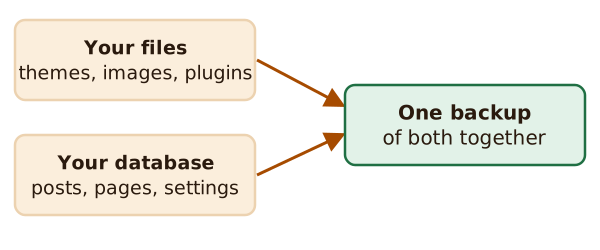
A good plan keeps regular snapshots of the whole installation. That means the WordPress core files and the database, kept in a trusted location.[2] If you only copy the files, you lose your posts. If you only copy the database, you lose your theme and uploads.
Where to keep it
Keep a copy away from the live site. If the backup sits only on the same server, one problem can take out both.
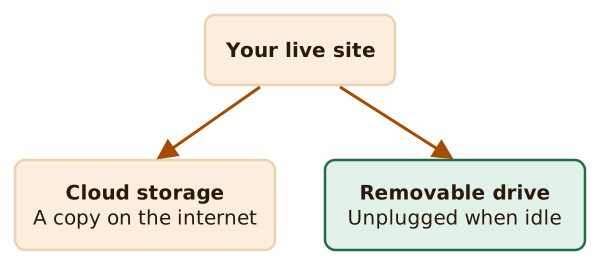
Two places are common. One is cloud storage, which means space on the internet. The other is removable media, such as an external drive.[1]
Each has a rule. Anyone who can get into your cloud account can also reach your backups.[1] So protect that account with a strong password and a second check. See logins and two-factor.
Unplug a removable drive when you're not using it. Viruses and other malware can move onto attached drives by themselves.[1]
How often
Match it to how often your site changes. A site that posts daily needs a fresher copy than a site that changes once a month. The WordPress handbook uses weekly snapshots as its example.[2]
Making backups takes little time, and they can usually be set up to run on their own.[1] Set it once, then check it.
Why keep more than one
A hack can sit unnoticed for days. The handbook gives an example. A site is compromised on 1 May, but nobody notices until 12 May.[2] The owner still has backups from before the hack to rebuild from. They may also have later ones, which help show how the attacker got in.[2]
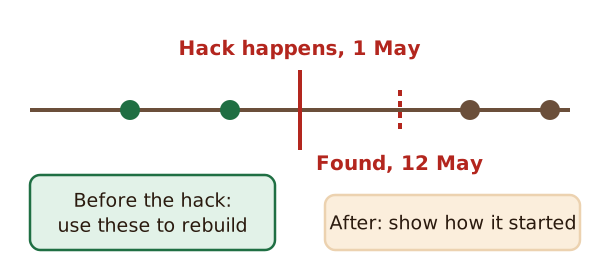
If you only keep the newest copy, it may already contain the hack.
Test a restore
Making a backup isn't enough. Once it's made, check that it holds all your important data.[1] The WordPress handbook talks about backups that you have tested are valid and can be easily restored.[2]

Here's a simple test:
- Pick a recent backup.
- Restore it to a test spot, such as a spare folder or a test site, if your host offers one.
- Look for your newest posts, images and settings.
- Write down how long it took and what went wrong.
The sources don't give a fixed schedule for tests. A sensible habit is to test once after setting backups up. Test again after any big change to your site or host.
What's next
A backup protects you from loss. Next, think about who can log in to your site. Read access for staff and contractors.
Sources
- Backing up your data (Top tips for staying secure online), NCSC (UK National Cyber Security Centre) (accessed 2026-11-12)
- Hardening WordPress, Advanced Administration Handbook, WordPress Developer Resources (accessed 2026-11-12)